Representative IT Support Case Study
Troubleshooting a Windows Workstation with a Clear, Safe Method
A representative support case based on recurring workstation tasks from practical IT support experience.
It demonstrates a structured method for diagnosing Windows, hardware, software, printer, and network issues
without exposing client names or sensitive information.
0Workflow Areas
0Method Stages
0Example Checks
Representative Support Workflow
A documented method from intake to validation and handoffProject Overview
Context, problem, objective, and scope
ContextA shared Windows workstation in a small service environment supported office applications, printing, internet access, and routine daily work.
Technical problemRepresentative symptoms can include slow performance, outdated software or drivers, unstable printer access, and intermittent network connectivity.
ObjectiveDefine a repeatable method for diagnosing workstation issues, protecting user data, validating essential services, and documenting support work.
Case-study basisThis page combines recurring tasks from practical IT support experience into one anonymized workflow. It does not claim a specific client engagement or service-level benchmark.
Symptoms and Operational Risks
What required investigation
🐢
Slow workstationStartup and application delays
Startup programs, storage health, memory, updates, and background processes required review.
🖨️
Printer interruptionUnreliable shared-device access
The print queue, driver, connection, default printer, and test-page output needed validation.
🌐
Network instabilityIntermittent local or internet access
Adapter status, IP configuration, gateway reachability, DNS resolution, and cables required testing.
🛡️
Maintenance gapsUpdates, security, and documentation
Missing updates and undocumented configuration could create repeated incidents.
Utilities and support techniques represented
🪟
Windows administrationTask Manager, Device Manager, Settings, services
Supports performance, startup, driver, user-setting, and maintenance checks.
⌨️
Command-line diagnosticsIP, reachability, and DNS checks
Commands such as ipconfig, ping, and nslookup separate local, gateway, and name-resolution problems.
🔧
Hardware inspectionCables, peripherals, storage, physical condition
Physical checks confirm power, cabling, ventilation, and visible hardware risks.
📝
Support documentationSymptoms, actions, tests, recommendations
A concise intervention record improves continuity and future troubleshooting.
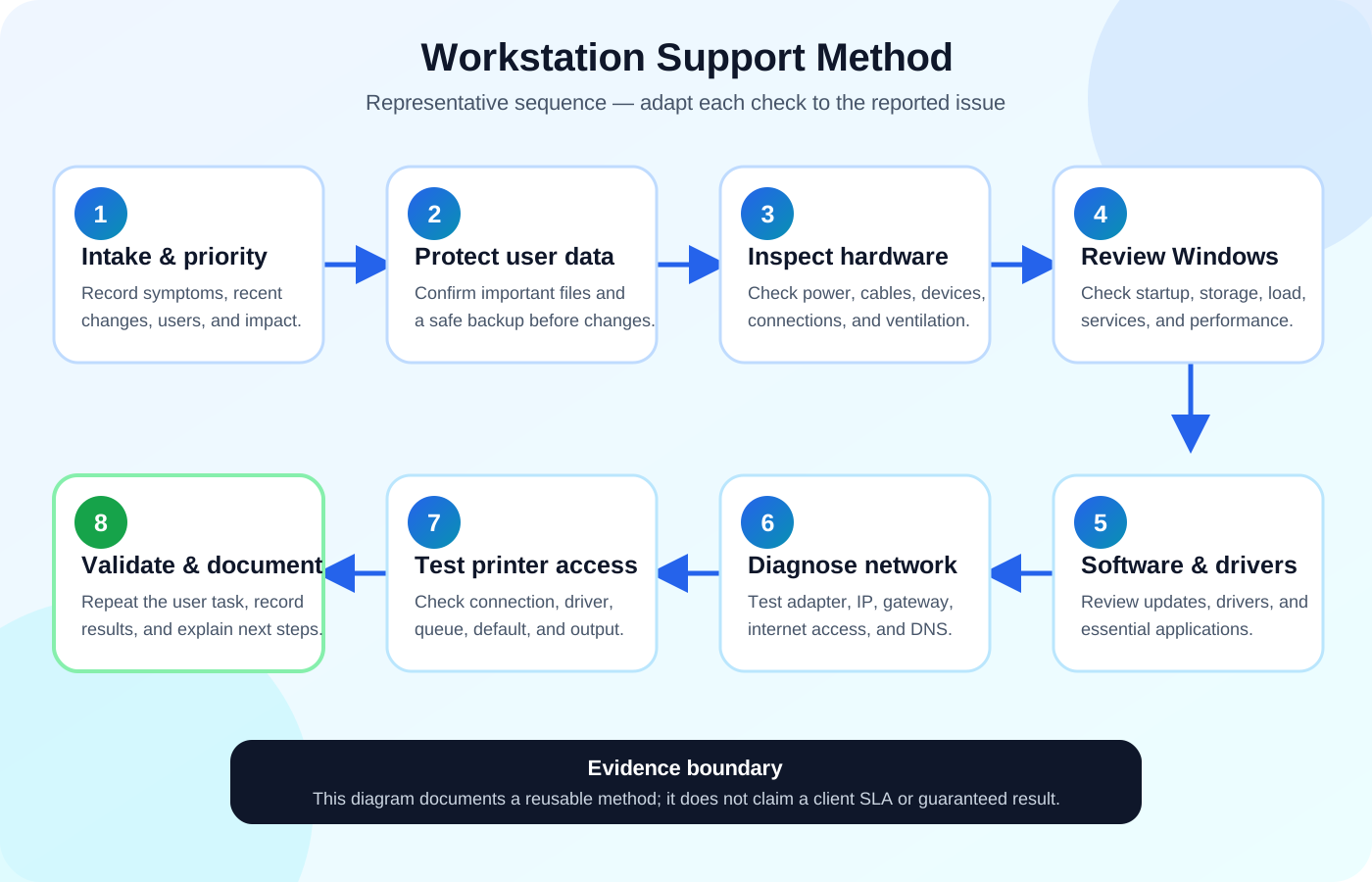
Eight-Stage Representative Method
A reusable sequence rather than a claim about one client incident
1Collect symptoms and define priorityUnderstand what failed, when it started, and who is affected
- Record the issue and recent changes.
- Identify essential user services.
- Reproduce symptoms before making changes.
2Protect important user dataReduce risk before maintenance
- Confirm important document locations.
- Check for a usable backup or safe copy.
- Avoid destructive actions until risk is understood.
3Inspect hardware and connectionsCheck power, cables, peripherals, and ventilation
- Verify display, input devices, printer, and network connections.
- Check for loose cables or visible damage.
- Separate physical faults from software problems.
4Review Windows performance and startupIdentify abnormal load and resource use
- Review CPU, memory, disk, and startup activity.
- Check storage availability.
- Verify required Windows services.
5Check updates, drivers, and softwareImprove compatibility, security, and stability
- Review Windows updates and driver status.
- Confirm essential applications open correctly.
- Remove only clearly unnecessary or conflicting software.
6Diagnose network connectivityTest adapter, IP configuration, gateway, and DNS
- Verify adapter status.
- Check IP address, gateway, and DNS.
- Test local reachability, internet access, and name resolution separately.
7Restore printer accessValidate connection, driver, queue, and output
- Check the installed and default printer.
- Review the print queue and status.
- Confirm operation with a test page and user document.
8Validate, document, and explainConfirm useful service restoration and record the work
- Repeat the original user tasks.
- Record symptoms, actions, results, and recommendations.
- Explain basic maintenance and safe-use practices.
Representative Corrective Actions
Actions selected according to the diagnosed issue
Performance checksReview startup load, storage, background activity, updates, and essential applications.
Connectivity checksVerify adapter and IP settings, separate local, internet, and DNS issues, and retest communication.
Printer checksConfirm the connection, driver, queue, default-device selection, and test-page output.
Preventive supportDocument the intervention and provide practical guidance for future incident reporting.
Start with the safe end-user storage checks when Windows reports that a drive is full.
Six Example Validation Checks
Checks selected according to the affected services
1
Startup checkConfirm Windows reaches a usable desktop
2
Application checkConfirm essential applications open normally
3
Local network checkConfirm the expected gateway is reachable
4
Internet and DNS checkConfirm external access and name resolution
5
Printer checkConfirm a test page and user document print
6
User workflow checkRepeat the original task with the user
Documented Workflow Scope
Transparent counts from this published representative method
4 support areasWindows performance, hardware and peripherals, printer support, and network connectivity.
8 diagnostic stagesFrom symptom intake and data protection through diagnosis, validation, and documentation.
6 validation checksStartup, applications, local network, internet and DNS, printing, and the original user workflow.
1 reusable workflowThe process can be adapted into a checklist for future workstation incidents.
Scope note: these counts describe the published method. They are not client results, an SLA, a benchmark, or a guaranteed performance improvement.
Lessons Learned
Practical principles demonstrated
🎯
Start with the user’s real taskTechnical success must restore useful work
A device is not fully repaired until the user can repeat the activity that failed.
🧩
Separate symptoms from causesSlow performance can have several sources
A structured method prevents random changes and isolates the real fault.
✅
Validate every essential serviceOne successful test is not enough
Startup, applications, connectivity, printing, and the user workflow should be checked independently.
📚
Documentation reduces repeat workClear records improve continuity
Recording symptoms, actions, and results supports faster future troubleshooting.
Skills Demonstrated
Technical and professional capabilities
IT SupportHelp DeskWindowsHardware DiagnosticsSoftware TroubleshootingPrinter SupportLAN TroubleshootingDNS ChecksUser SupportTechnical DocumentationValidation TestingPreventive Maintenance
Need Practical IT Support?
I can help with Windows setup, workstation troubleshooting, printer support, user assistance, basic network diagnostics, and technical documentation.